
CrownGreen App For Android And iPhone
Take the CrownGreen casino lobby onto your phone with browser access on Android and iPhone. Open the site, sign in and use the same profile for slots, live tables and CAD payments. CrownGreen App access on this page uses the mobile website and a home-screen shortcut. You can return to the casino without downloading an APK or creating another account.
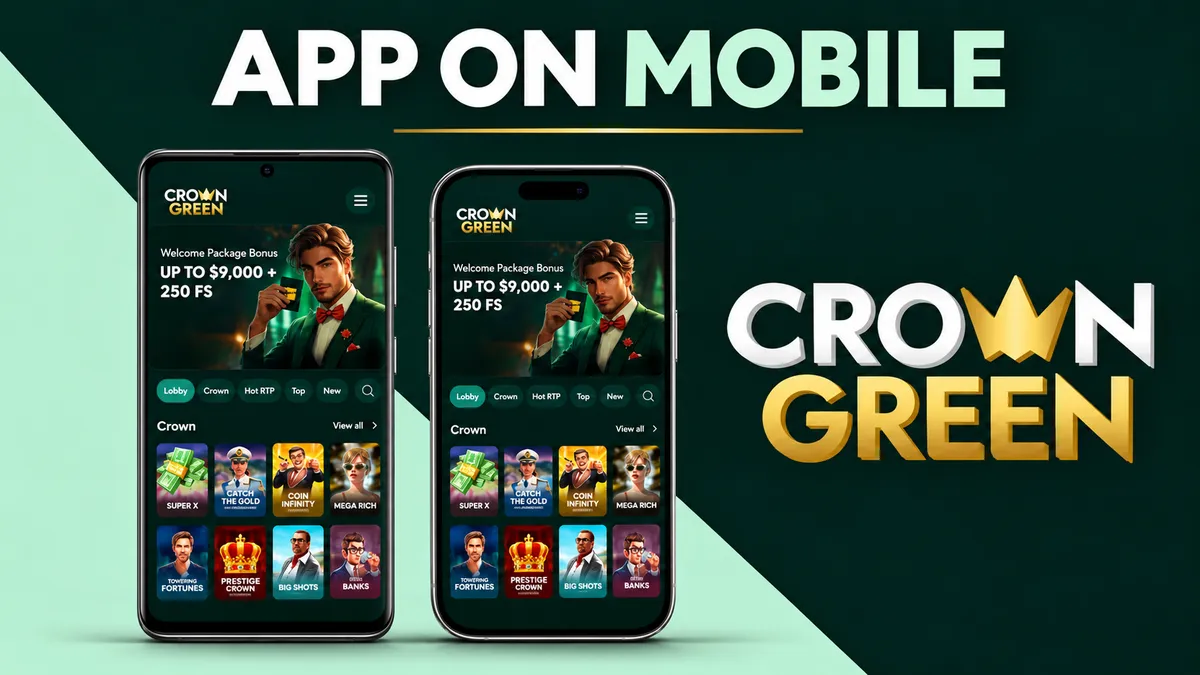
CrownGreen App access on Android devices
Open CrownGreen in the Android browser and sign in with the account you already use. The mobile layout brings game categories, promotions and account actions into the smaller screen. Start with the game search if you know a title, or use the provider filter to narrow the selection.
Adding the casino to the Android home screen
A shortcut keeps the casino address on the phone's home screen. It opens the saved website through the browser rather than installing a native Android application.
- Open the casino in your usual Android browser.
- Open the browser's menu.
- Choose the option to add the page to the home screen.
- Confirm the shortcut name and placement.
- Use the new icon for the next visit.
The exact menu wording belongs to the browser. Saving the shortcut does not change account credentials, create an installation reward or activate a welcome offer.
CrownGreen App on iPhone and iPad
Safari provides the browser route on iPhone and iPad. Sign in to the existing profile to reach its games, balance and payment area. A larger iPad screen offers more room for table layouts while keeping the same account.
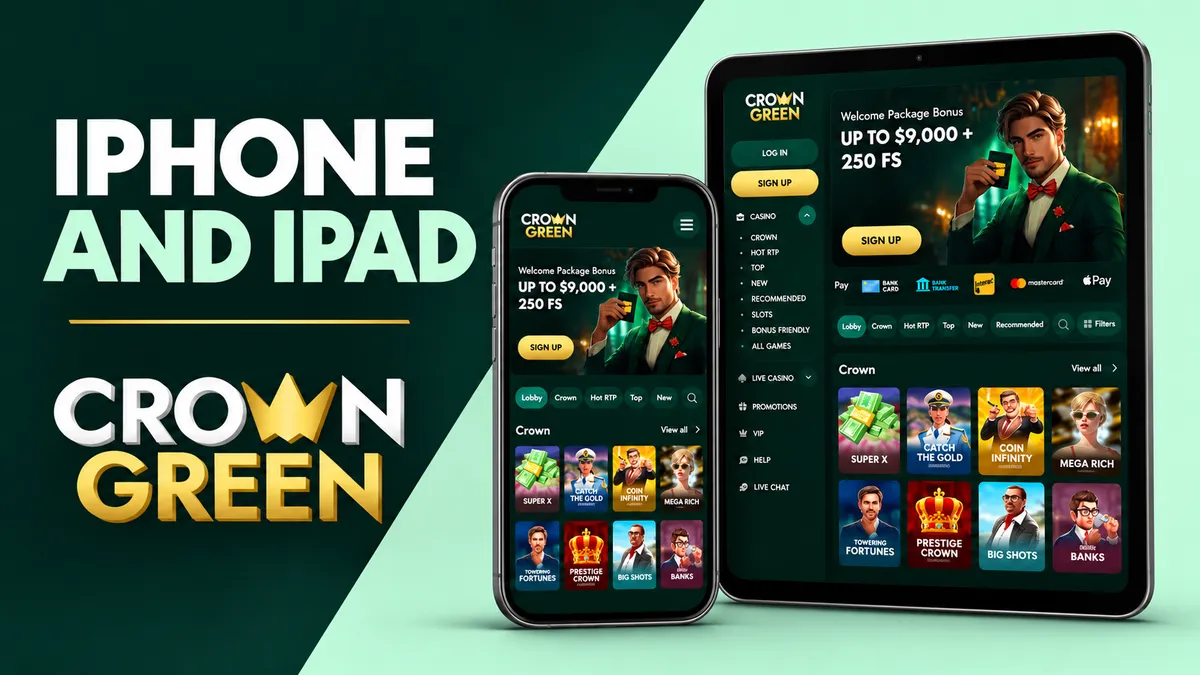
- Open CrownGreen in Safari.
- Sign in with the registered email and password.
- Use Safari's sharing menu to add a home-screen shortcut if wanted.
- Return through that shortcut on a later visit.
The saved icon opens the casino address; it is not proof of an App Store download. Keep Safari and iOS updated so that page controls and payment authorization work with the device's current software.
Games and payments through CrownGreen App
The mobile browser combines the catalogue and account functions in one session. CrownGreen App access keeps the choice between slots and live tables, while the cashier allows CAD funding with personal payment details.
Finding slots and opening a familiar title
The catalogue contains more than 2,000 games, with studios including Booongo, Pragmatic Play, Spinomenal and Evoplay. Search and category choices save time when browsing on a smaller screen.
- Search for a full game name or a distinctive word.
- Narrow the list to a familiar provider.
- Browse formats such as Hold and Win, Megaways and jackpots.
- Open the game information before confirming the stake.
A tile opens the chosen title, not a second account. When using promotional spins, select the game assigned to that account offer rather than another slot from the same studio.
Live dealer rounds and touch controls
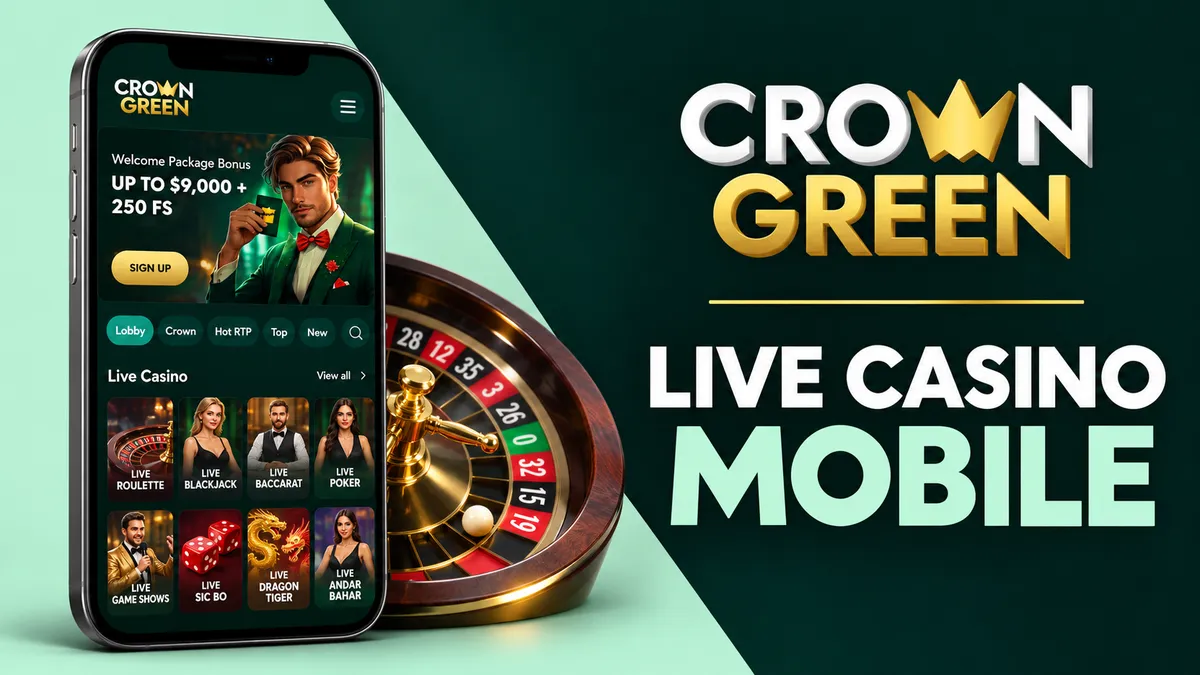
Blackjack, roulette, baccarat and Sic Bo use their own betting windows and table rules. On a phone, keep the stake and confirmation controls visible before joining a round. Additional blackjack actions and side bets can increase the amount committed. A larger screen can make these details easier to follow, but it does not change the table's rules.
CAD deposits and mobile wallet authorization
Visa and Mastercard support funding, with Apple Pay and Google Pay available for mobile wallet authorization. An ordinary card deposit starts at C$30; a standard welcome stage requires at least C$35.
- Confirm that the correct CrownGreen account is signed in.
- Open the cashier and choose a personal payment method.
- Enter the amount in CAD and select the promotion if wanted.
- Complete the card or wallet authorization.
- Return to the casino and retain the payment reference.
A wallet confirmation is not the same event as the casino credit or bonus allocation. If the operation is unclear, trace the original payment before making another one.
CrownGreen App login with your existing profile
Use the same registered email and password when returning through CrownGreen App access. The account balance, payment history and promotions belong to the profile, rather than the phone or shortcut used to open it.
Moving between a phone and computer
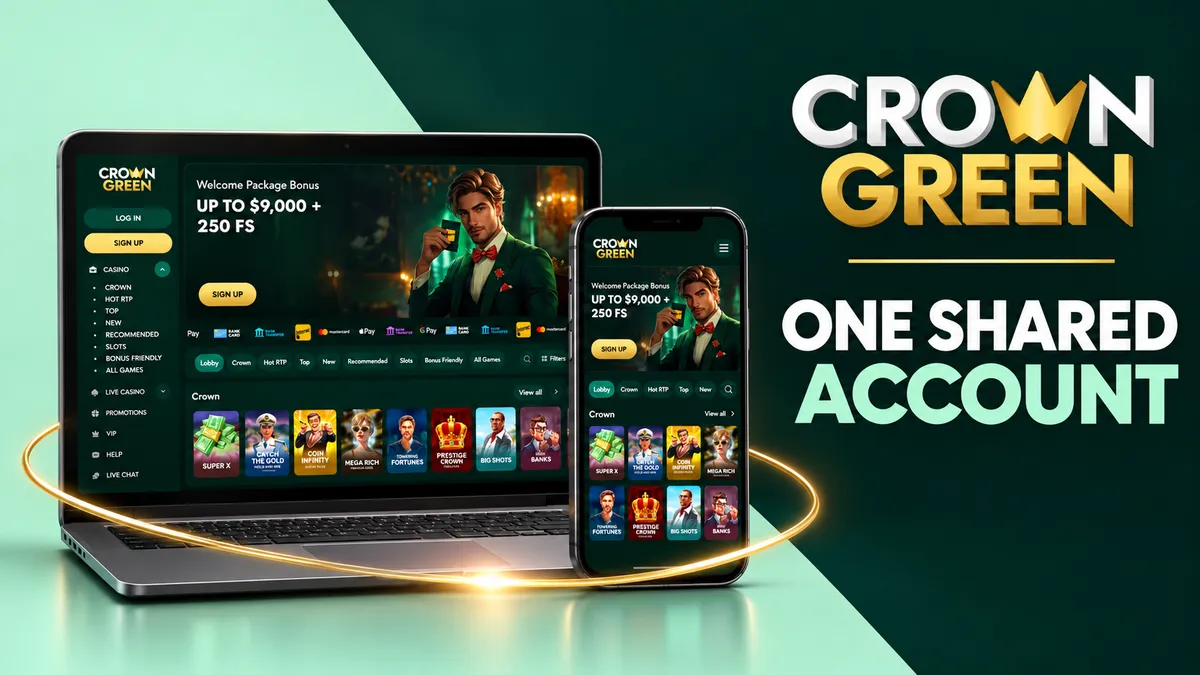
The browser route lets you use the screen that suits the current action. Keep one profile when moving between devices.
| Action | Phone or tablet | Computer |
|---|---|---|
| Find a slot | Search and touch navigation | Wider catalogue view |
| Read live table information | Keep controls visible | More room for rules and layout |
| Supply requested evidence | Capture readable document images | Review and upload existing files |
| Review an operation | Follow the account's payment record | Compare longer records on screen |
Changing devices does not itself complete identity verification or require a duplicate registration. Finish a payment or game action before leaving the earlier session.
Recovering access and contacting support
Use password recovery if the saved credentials no longer work. Check the registered mailbox and spam folders for the reset message. If access to that mailbox is lost, explain the situation to support. Live chat operates 24/7, and [email protected] handles email enquiries. Supply the device, browser and displayed error without sharing the password.
Secure access while using CrownGreen App
The mobile account contains personal information and payment records as well as games. Protect the device and registered mailbox so that a convenient home-screen shortcut does not leave the profile open to another person.
Browser updates, screen locks and private credentials
Use ordinary device security alongside the casino's account checks. The browser shortcut itself does not verify the identity of whoever holds the phone.
- Keep the operating system and browser updated.
- Protect the phone with a screen lock.
- Use a unique account password.
- Keep authentication codes and recovery messages private.
- Sign out before lending or replacing the device.
Identity and payment verification remain separate procedures. A withdrawal can require review of the account holder even when sign-in on the phone succeeds.
Responsible gambling during mobile sessions
Set the spending amount and intended session duration before opening a game. A phone makes returning convenient, so include short visits in the same budget instead of treating each one as a fresh allowance.
- Set a stopping point for time and spending.
- Count feature purchases and side bets in the total.
- End play when the planned limit is reached.
- Ask support for a pause, self-exclusion or account closure if needed.
Removing the shortcut changes how easily you open the page, but it is not the same as an account restriction. Contact support when you need a restriction applied to the profile.
Frequently asked questions about CrownGreen App
No. You can open the casino in the Android browser and sign in. A home-screen shortcut saves the address without requiring an APK installation.
Yes. Safari provides access to the casino website on iPhone and iPad. Use the same profile that you registered on another device.
No. The shortcut opens a saved website address. It does not establish that a native Android or iOS application has been installed from an app store.
Yes. Sign in with the same registered email and password. The profile, balance and active promotion remain associated with that account.
No. The selected offer still determines the qualifying deposit, wagering requirement, stake limit and completion period. Moving to a phone does not replace those conditions.